Instant Fix Guide How to Fix 500 Internal Server Error Now!
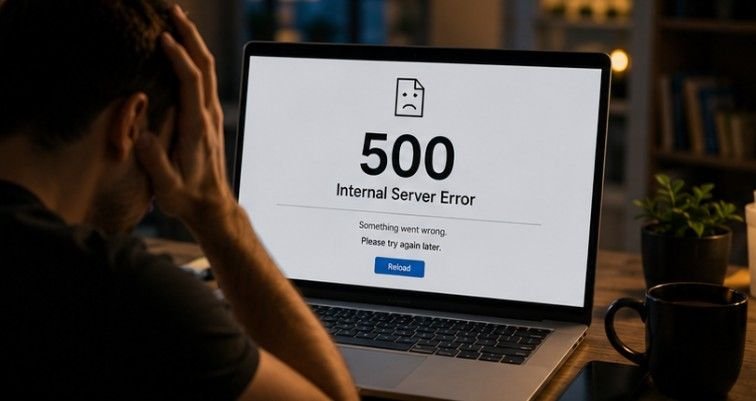
Few website problems are more frustrating than suddenly losing access to your own domain. A 500 internal server error can appear without warning, often during peak traffic or immediately after a routine update, leaving visitors locked out and site owners scrambling for answers. Fortunately, this issue is usually fixable once you identify the underlying cause.
In this guide, I will walk you through the most common triggers, practical troubleshooting steps, and safe solutions to restore your website quickly without creating additional problems or unnecessary stress.
Key Takeaways
- Clear browser cache or test incognito mode first to rule out local client display glitches.
- Audit server log files directly to locate exact PHP syntax breakdowns or fatal script crashes.
- Increase your PHP memory limit and repair corrupted core files like .htaccess via FTP access.
- Isolate plugin and theme conflicts by temporarily renaming your site content directory files individually.
- Maintain clean database credentials and monitor hosting server resources to stop repeat site downtime.
Fixing a 500 Error Matters (Before Your Users Panic)
Imagine inviting a crowd to a major event only to find the entrance suddenly locked every time someone arrives. That is how visitors experience a server crash: they cannot access your content, complete purchases, or contact your business. Acting quickly helps protect user trust, reduce lost traffic, and prevent prolonged downtime from affecting search visibility.
A fast response also keeps essential services running, limits revenue disruption, and reassures customers that your website remains dependable even when unexpected technical problems occur.
Quick Fixes for Website Visitors
Checking basic front-end factors saves valuable time before altering backend server configurations.

Refresh the Page First
A brief server spike or temporary network hiccup can trigger a momentary status error. Force-refresh your browser using Ctrl+F5 or Command+Shift+R to bypass local browser caching completely. If the site loads cleanly, you can jump right back into browsing without any extra effort.
Clear Your Browser Cache
Old data stored in your browser can sometimes confuse your connection to the server. Delete your browser cookies and clear your cached site data to eliminate stale files. This simple reset often restores your connection instantly and gets pages loading again without hassle.
Switch to Another Browser
Sometimes browser extensions or privacy settings interfere with specific site scripts. Try opening the webpage in a totally different browser or launching a fresh private incognito window. If the page opens normally there, the hiccup comes from your primary browser settings rather than the remote host.
How to Fix 500 Internal Server Error for Website Owners
Following a structured diagnostic sequence helps isolate and resolve the issue systematically.
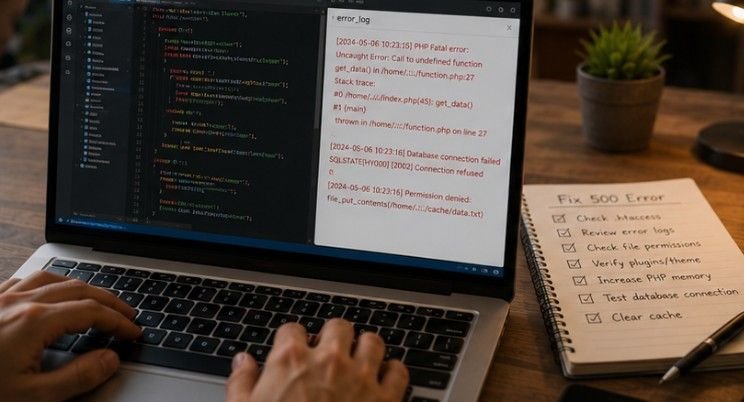
Inspect Your Server Error Logs
Connecting to your hosting account via FTP or cPanel File Manager gives you direct access to raw operational logs. Locate the error.log file inside your server root directory to view exact timestamps, failed file paths, and specific line numbers causing execution panics. Finding the exact line of broken code saves hours of guesswork.
Disable Faulty Plugins and Themes
Navigate to your content installation directory and temporarily modify the main extensions folder name via FTP. Disabling all active extensions simultaneously restores site access, allowing you to reactivate items one by one to catch the culprit. This isolation method quickly pinpoints the exact plugin causing your site to crash.
Inspect and Reset Your Configuration File
Browsing public web directory and temporarily rename your configuration file (such as .htaccess to .htaccess_old). Create a fresh, default file using standard framework rules to determine if bad rewrite instructions caused the crash. Resetting this file wipes out corrupt directives instantly.
Audit Your File Permissions
Incorrect permission values prevent web servers from reading or executing required system files correctly. Folder permissions should strictly maintain a 755 standard, while individual files require a 644 setting. Keeping these settings accurate ensures your server reads system data safely without blocking access.
Increase Your PHP Memory Limit
Open your system configuration file or edit your server directives to boost maximum execution parameters. Raising memory allocation values (e.g., from 64M up to 256M or 512M) gives intensive background processes room to run without triggering hard execution stops. Extra memory headroom prevents scripts from timing out during heavy tasks.
Advanced Server Rules and Permission Audits
Fine-tuning advanced file security parameters prevents unexpected system execution blocks.

Verify File and Folder Permissions
Incorrect permission values prevent web servers from reading or executing required system files correctly. Folder permissions should strictly maintain a 755 standard, while individual files require a 644 setting. Never leave directories set to 777, as overly permissive rules cause built-in security modules to reject execution requests outright.
Audit CGI and Perl Execution Scripts
If your platform uses custom scripts or legacy CGI modules, verify that line endings use proper syntax formats. Incorrect file permissions or misplaced directory headers in CGI scripts trigger immediate server crashes before any content can render on screen.
Frequently Asked Questions
1. How to get rid of 500 internal server error?
You can get rid of this issue by clearing your browser cache as a visitor. If you own the site, check your server error logs, fix corrupted configuration files, raise your memory limits, and temporarily disable conflicting plugins via FTP access.
2. What are the reasons for a 500 internal server error?
The main reasons include corrupted server config files, exhausted PHP memory limits, incompatible plugins or themes, incorrect file permissions, or sudden database connection drops during heavy server requests.
3. Is error 500 temporary?
It can be temporary if caused by a brief server traffic spike or hosting glitch. However, if the root cause stems from corrupted code or bad configuration files, the issue will persist until you manually fix it.
4. Does a 500 error mean the site is down?
Yes, it means the server cannot render the requested page for visitors right now. However, your core site files and underlying database usually remain safe and completely intact behind the scenes.
Bye-Bye Bugs: Crushing the 500 Internal Server Error for Good
A sudden server failure can feel overwhelming, but a calm, step-by-step approach makes recovery much easier. Building websites with AI is also a recent trend. Checking error logs, increasing memory limits, reviewing plugins, and repairing corrupted configuration files can often restore your website without major disruption.
Once the error is resolved, focus on prevention by keeping software updated, removing unused files, monitoring server performance, and scheduling regular backups. With a reliable troubleshooting process in place, you can respond to future website errors faster, reduce downtime, and maintain a stable, secure online presence.