Slow Site? How to Clean Up WordPress Database in Minutes!
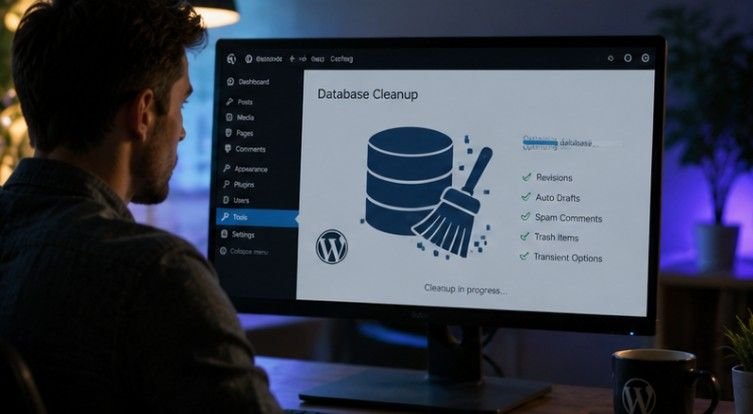
Keeping a website fast and responsive requires continuous care under the hood. Over months of publishing content, adding plugins, and receiving comments, your storage tables fill up with invisible digital trash that slows down server execution. Learning how to clean up wordpress database entries is the single most impactful maintenance task you can perform to restore lightning fast page load speeds and keep your administrative panel flying.
Before touching any technical settings or running automated scripts, you must safeguard your files. To clean up your WordPress database safely, always start by creating a full database backup. The most efficient and safe way to handle the cleanup is by using a dedicated optimization plugin, though advanced users can also use manual database tools like phpMyAdmin.
Having a fresh backup file stored on your local drive gives you complete peace of mind. If an accidental table drop occurs, restoring your site takes only a few clicks.
Method 1: Clean Up Using a WordPress Plugin (Recommended)
Using specialized software is the easiest path for site managers of any skill level. Plugins automate the process, preventing accidental deletion of vital core files. Trusted options include WP-Optimize, Advanced Database Cleaner, and WP-Sweep.
Install a Maintenance Plugin
Getting started requires only a few clicks within your site controls. Navigate to Plugins, click Add New in your dashboard, search for WP-Optimize, and click install and activate.
Once active, the tool adds a dedicated management tab to your sidebar menu. This interface displays a complete overview of all data tables alongside optimization recommendations.
Run Standard Cleanups
Automated tools locate thousands of redundant rows instantly. Go to the plugin menu and select Safe or Standard options to review recommended targets.
These safe cleanup options typically include Post Revisions, which removes historical versions of saved articles. They also target Auto-drafts to delete temporary post saves, and Spam or Trashed Comments to permanently delete unwanted engagement clutter.
Execute and Optimize
Clearing out junk rows is only the first half of the process. Click Run all selected optimizations to wipe the junk data and defragment your MySQL tables to reclaim empty storage space.
Defragmentation reorganizes how data sits on your physical disk storage. This reduces query execution time and ensures your web host handles incoming traffic spikes smoothly.
Remove Leftover Tables

Uninstalled software often leaves hidden data structures behind. Go to the plugin’s Tables tab to inspect your active database layout thoroughly.
Look for tables marked as not installed or inactive left behind by uninstalled plugins, and remove them. Eliminating these orphaned entries reduces total database size and prevents useless data from loading into RAM.
Schedule Automations
Consistent site care prevents massive clutter from accumulating in the future. In the plugin settings, toggle on Enable scheduled clean-up to automate this weekly or monthly.
Scheduled sweeps keep your site running lean without requiring manual intervention. You can set the utility to run during off-peak hours so visitors never experience slowdowns.
Method 2: Manual Cleanup via phpMyAdmin (Advanced)
Direct database management provides total control for experienced web administrators. If you prefer not to use a plugin, you can access your database control panel via your web hosting provider. This direct approach eliminates extra software overhead on your server.
Log in to phpMyAdmin
Accessing your server control panel takes just a moment through your host portal. Log in to your hosting account, such as cPanel or custom hosting dashboards, and select phpMyAdmin.
This tool gives you direct administrative access to all tables associated with your domain. Always double check that you are modifying the correct database before running any commands.
Select Database
Isolating your active domain ensures you do not alter unrelated installations. Click your site’s database name from the left-side panel to load its complete structure.
You will see dozens of individual tables listed with a specific prefix. Reviewing this list helps you understand how different applications store content on your server.
Run SQL Queries

Targeted command strings allow you to wipe thousands of unwanted records instantly. Go to the SQL tab to execute target command strings directly against your tables.
Always substitute wp_ with your actual database table prefix found in your wp-config.php file before executing scripts.
To clear revisions, execute this exact query:
SQL
DELETE FROM wp_posts WHERE post_type = ‘revision’;
To clear spam comments, execute this exact query:
SQL
DELETE FROM wp_comments WHERE comment_approved = ‘spam’;
Running these commands bypasses standard PHP processing, making it an extremely fast way to purge massive amounts of accumulated clutter.
Defragment Tables
Deleting rows leaves empty gaps inside your physical storage files. Return to the structure view, check the Check all box at the bottom, open the dropdown menu, and click Optimize table.
This command rebuilds the physical indexes and condenses file storage. As a result, your MySQL server executes search queries much faster across all site pages.
Proactive Bloat Prevention
Stopping data accumulation limiting website tracking before it starts saves hours of maintenance work down the road.

To keep the database clean going forward, limit the number of post revisions WordPress stores automatically. By default, your site saves every single edit draft indefinitely, creating unnecessary table bloat over time.
Add this snippet to your wp-config.php file to cap revisions at 5 per post:
PHP
define(‘WP_POST_REVISIONS’, 5);
Placing this rule in your configuration file ensures that old revisions overwrite themselves automatically, avoiding 404 error on website. And keeping your post tables compact permanently.
Frequently Asked Questions
1. Why are people moving away from WordPress?
Many site owners migrate to alternative platforms to avoid ongoing technical maintenance, constant security updates, and regular database optimizations required to maintain high speeds.
2. How do I repair and optimize WordPress database?
You can repair and optimize your database structure easily by using built-in optimization tools in free plugins like WP-Optimize or running the native Optimize Table command inside phpMyAdmin.
3. How do I delete all posts from my WordPress database?
You can delete all posts by selecting all items under the Posts screen in your dashboard or by running a direct SQL delete command against your posts table after making a backup.
4. How do you clean up your database?
You clean up your database by creating a full backup, removing post revisions and transients with an optimization plugin, dropping orphaned tables, and defragmenting your MySQL tables.
Time to Sweep the Digital Floor and Fly
Learning how to clean up wordpress database files is the ultimate secret to maintaining a blazing fast website. Regular maintenance prevents server lag, reduces backup file sizes, and guarantees a smooth experience for every visitor. Take a quick backup right now, run your first optimization sweep, and enjoy a revitalized web performance today!