The Secret to How to Move Domain to New Host Safely
Managing a growing website means you will eventually need a better, faster server, and figuring out how to move domain to new host setups can feel intimidating at first. However, the process becomes much easier when you understand each step, from backing up files to updating DNS records.
Moving to a reliable platform can improve site speed, strengthen security, reduce downtime, and simplify everyday management. With careful planning and the right preparation, you can complete the migration smoothly without losing content, traffic, or search rankings.
Key Takeaways
- Transfer vs. Pointer: Pointing your domain nameservers to a new web server is fast, whereas moving domain registrars takes several days.
- Prevent Downtime: Keep your old hosting account active during DNS propagation to ensure smooth website management and zero visitor disruption.
- Get EPP Code: Unlock your domain and fetch the authorization EPP code from your current registrar before starting.
- Backup Everything: Save a complete copy of your website files and database before making technical changes.
- Check Lock Rules: ICANN enforces a mandatory 60-day transfer lock on recently registered or updated domain names.
Why Bother Learning How to Move Domain to New Host?
Think of your domain as a house address and your web server as the physical building. When your landlord slaps you with high renewal fees or slow server speeds, you move! Learning how to move domain to new host providers gives you freedom, saves money, and unlocks top-tier features for your growing digital business.
Preparing Your Domain at the Current Host
Before launching a migration, you must properly unlock your current account and gather necessary credentials. Taking time to complete these foundational tasks ensures that your request proceeds without unexpected rejections or account locks.
Checking Domain Eligibility and Registrant Info
First, confirm that your web address has been active for at least 60 days with your current provider. ICANN rules strictly prevent transfers for brand new registrations or recent contact changes. Additionally, review your administrative contact email to guarantee you receive the final approval messages sent during the migration process.
Unlocking Your Domain Settings
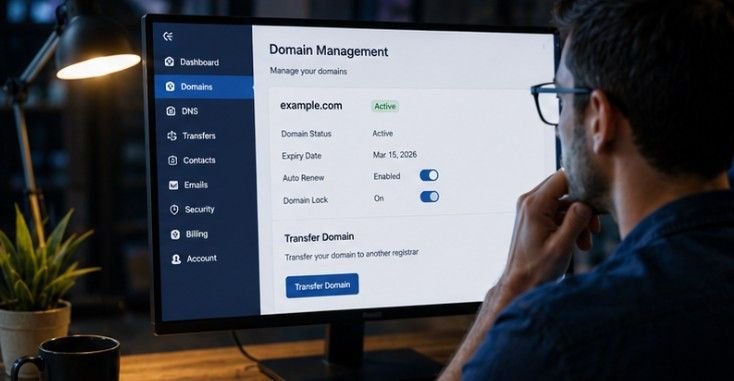
Log into your current dashboard and locate the domain management settings area. Find the domain locking option and toggle the switch off so the address can be moved freely. Disabling this protection status allows the new platform to communicate with the registry and verify ownership smoothly.
Requesting Your Authorization EPP Code
Locate the option to request an authorization code, which is also commonly referred to as an EPP code or transfer key. Your current provider will generate this unique security string or email it directly to your admin address. Copy this alphanumeric key accurately because your new host requires it to validate your transfer authority.
Starting the Transfer with the New Host
Once your current account is prepared, you can begin the onboarding process with your target provider. Completing these actions correctly kicks off the automated sequence that securely relocates your domain management. It helps avoid 404 error on website.

Initiating the Request on the New Platform
Navigate to the transfer portal on your new hosting platform and enter your exact web address into the search box. The system will scan global registry records to confirm that your domain is unlocked and ready for migration. Proceed to the next step once the system validates your domain name status.
Entering the EPP Code and Paying Fees
Paste your authorization code into the designated field to confirm that you are the rightful owner. You will then proceed to checkout to pay the migration fee, which typically includes a full one-year extension on your existing registration expiration date.
Approving the Transfer and Waiting for Completion
Check your email inbox for a final confirmation link sent by the registry or your former provider. Click the link to approve the release, then allow 5 to 7 days for the full administrative move to finalize. You can occasionally speed up this waiting period by manually approving the outgoing transfer inside your old host dashboard.
Maintaining SEO Rankings and Email Service
Preserving your search engine authority and inbox functionality requires careful coordination during DNS propagation. Implementing smart technical steps prevents server errors from disrupting your visitors or search engine crawlers.

Keeping Email Mailboxes Functional
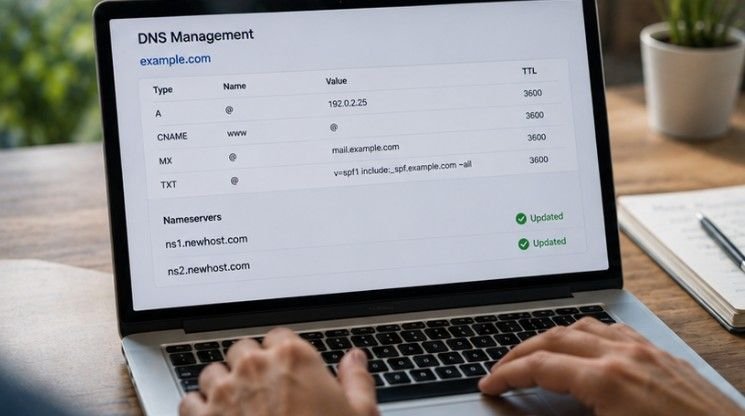
Recreate all existing email accounts on your new web server before updating your DNS nameservers. Exporting your historical email files ensures you will not lose important correspondence while inbox routing shifts over to the new mail server setup.
Avoiding Site Downtime During Propagation
Keep your original hosting account active for at least 48 hours after launching the transfer process. This overlap gives global internet networks enough time to refresh their caching records, ensuring seamless navigation for all your site visitors.
Frequently Asked Questions
1. How long does it take to transfer a domain to a new host?
Updating nameservers usually takes 24 to 48 hours for global DNS propagation to settle fully. However, moving the official domain registrar registration between hosting companies takes between 5 to 7 business days to complete.
2. Will I lose my email if I transfer my domain?
You will not lose your email address if you recreate the identical mailboxes on your new host before changing nameservers. Backing up past inbox messages guarantees that no historical emails are lost during the server transition.
3. Can I keep my domain name when I change a host?
Yes, you retain full ownership of your custom web address whenever you switch hosting accounts. You simply point your existing address to the new server IP addresses or transfer the domain management rights over to the new provider.
4. Can I move my domain from GoDaddy to another host?
Yes, you can easily transfer away from GoDaddy by unlocking your domain in the dashboard controls, retrieving your EPP authorization key, and submitting that code on your new hosting company’s domain transfer page.
You Did It! Time to Enjoy Your Upgraded Digital Home
Mastering how to move domain to new host setups grants you complete freedom over your website performance and online infrastructure. By systematically unlocking your address, retrieving your EPP authorization key, and configuring your new account, you protect your site from unexpected downtime. Now you can focus entirely on publishing great content and expanding your audience on a faster, more reliable server environment!